

How To Record Audio for Sharing
Here’s what I suggest for our next endeavor as a worship team: Remote recording of Worship Online for remote assembly, mixing, and mastering. Here’s how it would work. I would create a “click track” — a track of a guitar and voice part with a HEAVY audible metronome click going on. You would download that click track, and playing it back through headphones, record your vox or instrument part as a separate, independent file. Upon completion, you would upload that file of your voice/instrument to our shared Google drive. Then I take all the pieces and assemble them using Logic Pro into a finished product. In this way, we stay socially distanced, yet can work collaboratively to provide amazing worship for our church family, bringing glory to God and delighting His heart!
If you’re up to try this out, I’d like to try it with JUST the few of us first, and then, if it works and we get the bugs worked out of the system, we can expand it to include all the folks from our worship teams — there’s no reason we can’t get everyone in on all of this, especially if we have final mixdown power to ensure that the recordings blend properly. I’d love to get these other voices and instruments involved at some point. If we get really crazy, we could do a couple of songs with video, doing the Brady-bunch thing with our faces in different squares on screen … that’s only if we get crazy, maybe as a special project from time to time.
Below are some guidelines for what it will take to get something like this off the ground. Yes, I’m setting the bar high. I’ve watched too many of these kinds of videos, and there’s a huge difference between being moved by a powerful, well produced video… and cringing to get through one with terrible audio, mistimed vocals, and bad lighting. I’m jumping on the 333-rule bandwagon here: “Sing to him a new song; play skillfully and shot for joy” (Psalm 33:3).
Setting Up
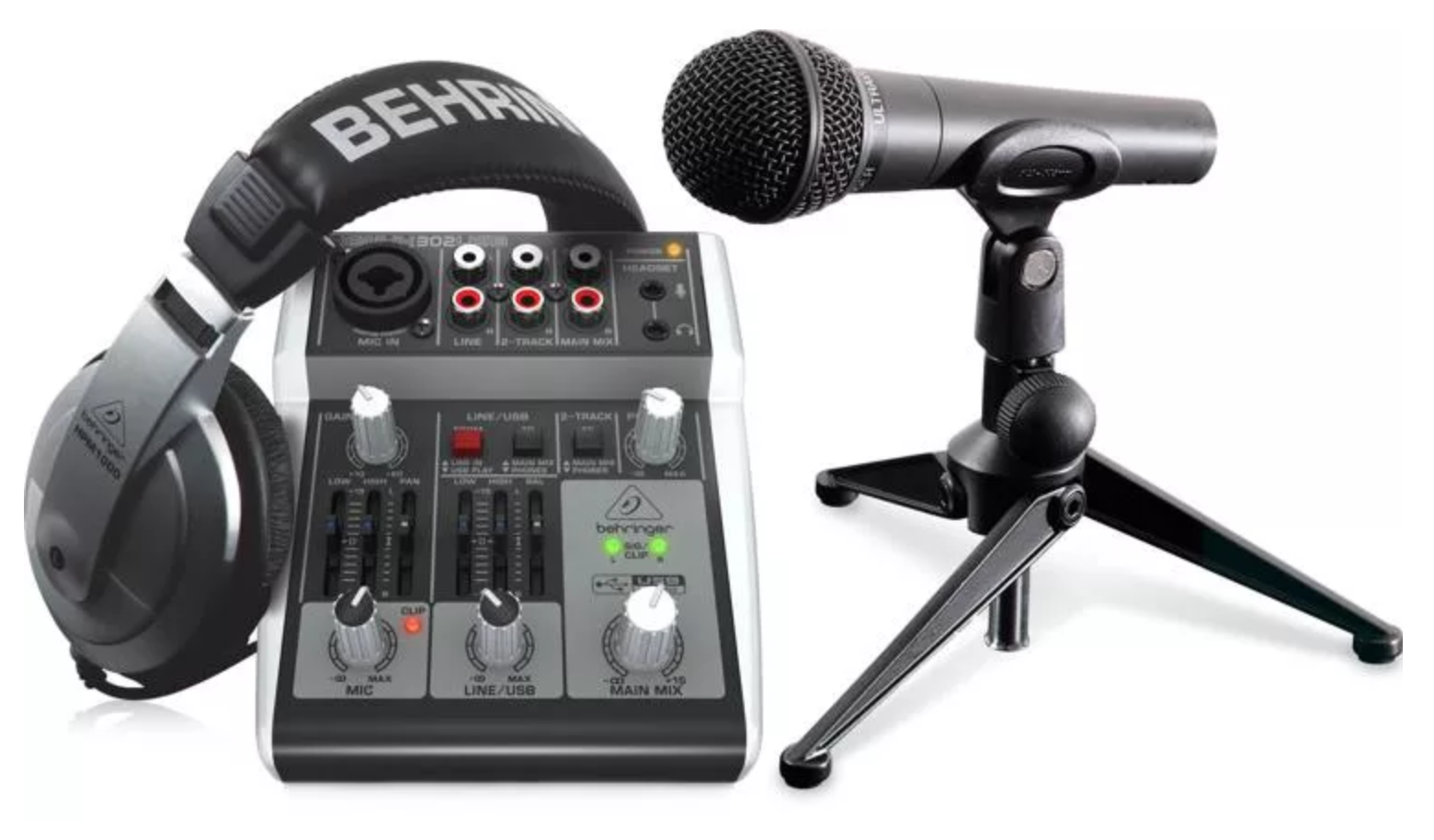
I’m also happy to troubleshoot with you to get your system up and running. But it’s worth taking a bit of time on the front end to set up a good recoding environment. If you need to borrow a good microphone from the church, and a cable or stand, we can make that happen too! You need:
Headphones — so you can hear the click track / baseline recording while singing or playing without picking up the click track in your microphone! You’re on your own here, people.
Microphone or instrument and cables — we have most of this stuff at the church. We can loan out the SM58 microphones if you promise to be careful with them, along with mic stands and cables.
Audio Interface — you need a way to get the equipment to talk to your computer. I have put together a list of suggested options if you want to invest in some good equipment. Your computer’s built-in sound card is probably sufficient for the quality level we’re aiming for, though.
Recording Software — you need a way to get your computer to record what you’re singing or playing so you can save it and upload it to our shared Google Worship Teams drive. There’s expensive options, free options, and cheap options. I’ve assembled a list of these options, too. I have exclusively used Macs since 1984 so if you’re running a pc, you’re on your own. :(

Recording Audio
It doesn’t really matter which software you use. Here are the important considerations when you’re recording audio and video.
Always record to the click track / base recording. Timing is the biggest hurdle in recording remotely, so ensuring you can hear the click track clearly in your headphones helps you stay on time. I can do some timeshifting if there’s a little issue here and there, but larger issues cannot be resolved.
Ensure your mic or instrument is not picking up the click track! Wear headphones!
Try to get your hands on a wind screen — or make one out of an old coat hanger and a pair of old pantyhose. Help me eliminate the S-bombs and P-bombs of unscreened vocals!
Record in an uncompressed audio format (.aiff for mac, .wav for pc) so that there are no compression artifacts in the recording you send me. When you’re uploading a track, make sure the extension is .aiff or .wav.
Recording Video
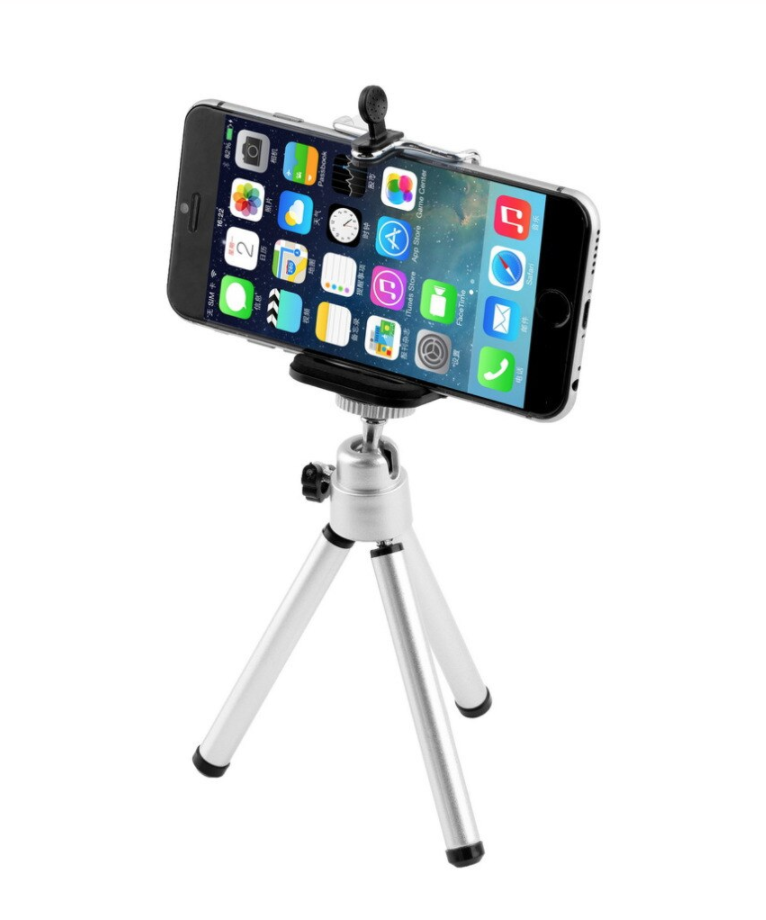
When recording video, I recommend using your phone. Video cameras on phones these days are great! Your phone audio will be terrible unless you’re using a dedicated recording app and a separate audio interface for your phone. If you record video on your phone, however:
Put your phone on a tripod or a stand. And don’t tap your foot anywhere near that stand or the table your stand is sitting on. We have lots of unusable footage of me playing guitar because I thump my right foot when I play, providing a heavy camera shake every quarter-beat.
Record in LANDSCAPE! I can always crop to portrait, but I can’t fill in the sides of a portrait recording if I need to get it to 16:9 widescreen dimensions.
Record video on separate device while recording audio to your computer. That way, you won’t have to worry about going all Milli-Vanilli on us and trying to line up your lips after-the-fact to prerecorded audio.
Ensure you have good lighting. Don’t stand in front of a window — you’ll be backlit and we won’t see anything. Don’t record in low light. If you want to get crazy, read up on three-point lighting techniques! I used to set up this kind of system when recording interviews for the old Advent testimony videos.
I am available for consultation throughout this process. I am not an expert in any of this — I just love the learning and problem-solving side of all this tech, and I LOVE the final product that emerges because of your gifts and your willingness to use your gifts for God’s glory and to edify His people! Let’s see what we can pull off with all this!